
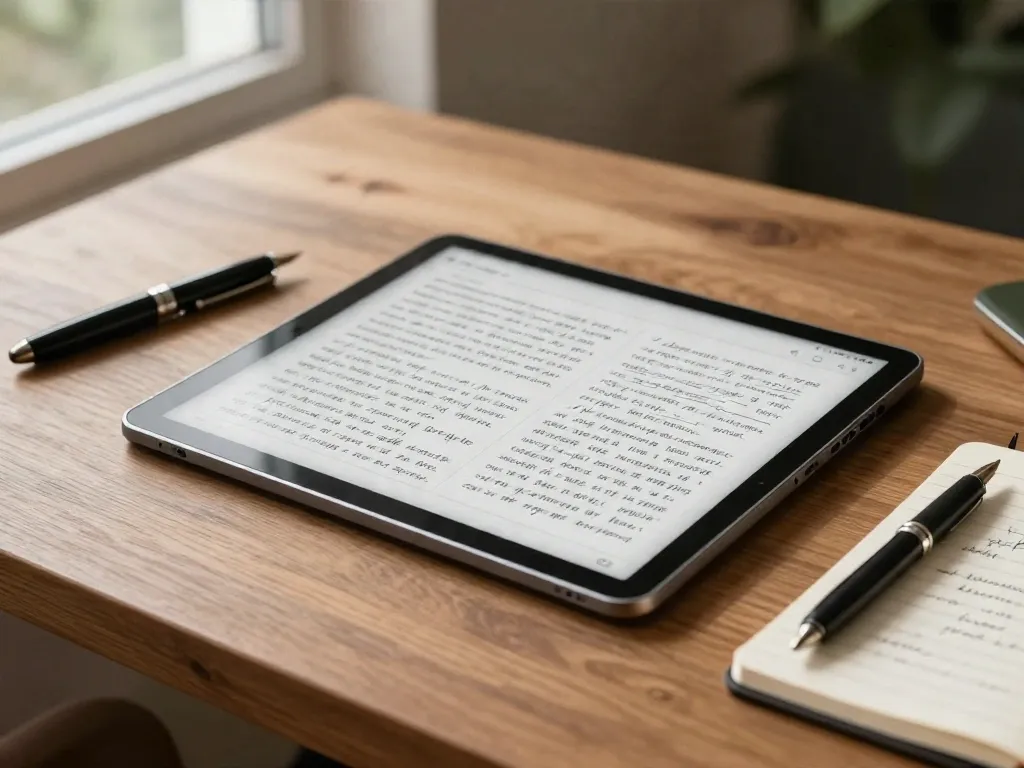
Choosing the Right E-Ink Tablet for Long-Form Writing
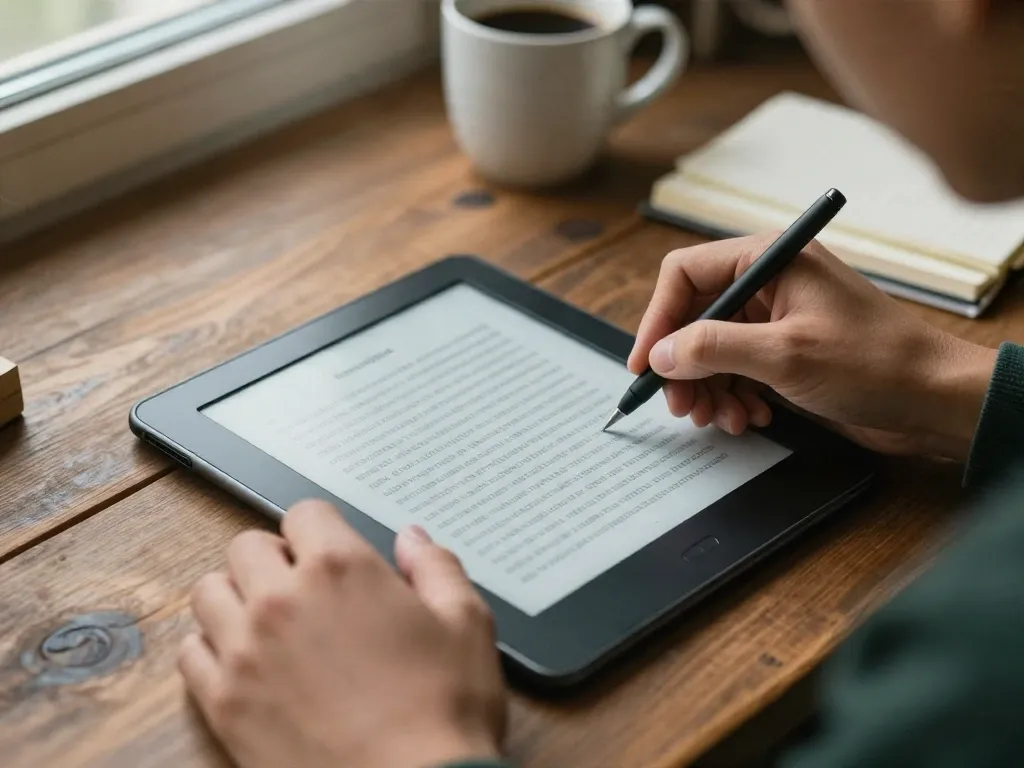
When it comes to long-form writing, the choice of tools can greatly impact your productivity and comfort. E-Ink tablets offer a unique reading and writing experience that mimics paper, reducing eye strain and allowing for long hours of focused writing. However, not all E-Ink tablets are created equal. To make the right choice, consider the following factors.
Key Features to Look For
When selecting an E-Ink tablet for long-form writing, there are several key features you should prioritize:
- Screen Size: A larger screen (10.3 inches or more) allows for more text to be displayed, making it easier to view and edit long documents.
- Stylus Support: A responsive stylus can enhance your writing experience, allowing for handwritten notes and annotations.
- Battery Life: Look for a tablet with at least two weeks of battery life to minimize disruptions during long writing sessions.
- Storage Capacity: Choose a device with sufficient internal storage (at least 32GB) to accommodate multiple projects and drafts.
- File Format Compatibility: Ensure the tablet supports popular formats like PDF, ePub, and Word documents for easy integration into your workflow.
Top E-Ink Tablets for Writers
Here are some of the top E-Ink tablets that cater specifically to long-form writers:
- Remarkable 2: Known for its paper-like feel, the Remarkable 2 features a 10.3-inch display and a responsive stylus, making it ideal for note-taking and drafting. Its minimalist design promotes focus, but it lacks some advanced features like app support.
- Onyx Boox Note 3: With a larger 10.3-inch screen and Android operating system, the Onyx Boox Note 3 provides versatile app support, allowing writers to use various writing and organizational tools. Its high storage capacity (up to 64GB) adds to its appeal.
- Kobo Elipsa: This tablet offers a 10.3-inch touchscreen, stylus support, and excellent integration with eBooks. Its comfortable weight makes it easy to hold for extended writing sessions.
- Sony DPT-CP1: A lightweight 10.3-inch E-Ink tablet, the Sony DPT-CP1 is designed for document management and reading. Its ability to annotate PDFs makes it particularly useful for writers who rely on reference materials.
Budget Considerations for E-Ink Tablets
Investing in an E-Ink tablet can vary significantly in cost. Here’s a breakdown:
- Entry-Level Options: Devices like the basic Kindle start around $90, but these may not be suitable for extensive writing tasks.
- Mid-Range Tablets: Expect to pay between $300 to $500 for quality tablets like the Remarkable 2 and Kobo Elipsa, which offer enhanced features and functionality.
- High-End Devices: The Onyx Boox Note 3 and Sony DPT-CP1 can range from $600 to $800, providing a comprehensive writing experience with top-tier specifications.
Setting Up Your E-Ink Tablet for Optimal Use
Once you’ve chosen your E-Ink tablet, the next step is to optimize it for long-form writing. This involves setting up essential applications, customizing the user interface, and utilizing cloud services for backup and synchronization.
Essential Apps for Long-Form Writing
To maximize productivity, consider installing the following applications:
- Google Docs: Perfect for collaborative writing and real-time edits, Google Docs can be accessed on Android-based E-Ink tablets like the Onyx Boox.
- Evernote: This app allows for organized note-taking and project management, ideal for keeping track of ideas and research.
- Scrivener: Though not directly available on E-Ink devices, you can write in Scrivener on your main computer and sync the files to your tablet for editing on the go.
- Microsoft OneNote: Useful for comprehensive note-taking, OneNote allows you to create notebooks and organize your projects effectively.
Customizing Your User Interface
Customizing the user interface can greatly enhance your writing experience. Here are a few tips:
- Adjust Font Settings: Choose comfortable font sizes and styles that reduce strain during long writing sessions.
- Create Shortcuts: Set up shortcuts for frequently used applications or document folders to streamline access.
- Organize Home Screen: Arrange your most-used writing apps and tools on the home screen for quick access.
Utilizing Cloud Services for Backup and Sync
Backing up your work is crucial. Use cloud services like:
- Google Drive: Automatically sync your documents across devices for easy access and backup.
- Dropbox: A simple way to store and share files, making collaboration easy with peers.
- Microsoft OneDrive: Offers integration with Microsoft Office apps, useful for writers who rely on Word or Excel.
Enhancing Focus and Reducing Distractions
Long-form writing requires concentration. Here are strategies to enhance focus and reduce distractions while using your E-Ink tablet.
Creating a Distraction-Free Writing Environment
A distraction-free environment is essential for productive writing. Consider:
- Choosing a Quiet Space: Find a comfortable and quiet area where you can write without interruptions.
- Using a Dedicated Writing Time: Set specific hours for writing to create a routine that fosters focus.
- Minimizing Physical Clutter: Keep your writing area organized to help maintain mental clarity.
Using Focus Modes and Timers
Focus modes can help you stay on task. Here are some effective techniques:
- Pomodoro Technique: Work for 25 minutes and take a 5-minute break. After four cycles, take a longer break. Use a timer app to keep track.
- Focus Apps: Consider apps like Forest or Focus@Will that promote concentration by blocking distractions.
Managing Notifications and Connectivity
Minimize distractions from notifications by:
- Turning Off Non-Essential Notifications: Limit alerts from apps that aren't related to your writing tasks.
- Using Airplane Mode: When focusing on writing, switch to airplane mode to avoid connectivity distractions.
Effective Note-Taking and Organization Techniques
Organizing your writing projects and notes can significantly improve your workflow. Here are some techniques to consider.
Implementing a Consistent Note-Taking System
Establish a consistent note-taking system to capture ideas and research efficiently:
- Bullet Journaling: This method allows for a structured approach to capturing thoughts, tasks, and ideas in a visual format.
- Outlining: Create outlines for your long-form pieces to organize thoughts and structure your writing.
Organizing Your Writing Projects
Keep your projects organized with these strategies:
- Folder Structure: Use a clear folder structure within your cloud storage or device to categorize different writing projects.
- Version Control: Keep track of different drafts and versions to avoid confusion and loss of work.
Tagging and Highlighting for Easy Reference
Utilize tagging and highlighting features available in your writing applications:
- Tags: Assign tags to notes and documents to easily retrieve relevant information later.
- Highlighting: Highlight key sections in your notes or drafts for quick reference during editing.
Reviewing and Editing Long-Form Content on E-Ink Tablets
Once your draft is complete, effective review and editing are crucial. Here’s how to make the most of your E-Ink tablet during this phase.
Tools for Revising and Proofreading
Employ the following tools to streamline your editing process:
- Grammarly: This tool can help you catch grammatical errors and suggest style improvements.
- ProWritingAid: A more comprehensive editing tool that offers detailed reports on various writing aspects.
Collaborating with Editors and Peers
Collaboration is essential for refining your work:
- Sharing through Cloud Services: Use Google Drive or Dropbox to share documents with editors and peers for feedback.
- Comment Features: Utilize comment features in collaborative apps to facilitate discussions and suggestions.
Exporting and Formatting Options for Final Drafts
When finalizing your document, consider the following exporting and formatting options:
- Export Formats: Ensure your E-Ink tablet supports exporting in multiple formats like PDF and Word for versatility.
- Formatting Tools: Utilize formatting tools within your writing app to adjust layouts, headings, and styles for publication.
In conclusion, optimizing an E-Ink tablet for long-form writing involves careful selection of the device, effective setup, and strategic organization techniques. By implementing these practices, writers can create a focused, efficient, and enjoyable writing environment that enhances their productivity and creativity.

Comments
No comments yet.
Leave a comment